
VideoCure Digest Article
How to Reduce Daylight Saving Time and Local Time Errors in Overseas Sports Schedules
Finding two different start times for the same sporting event does not always mean one website has made a simple mistake. The pages may be showing different types of time: the local time at the venue, a league reference time, the viewer’s device time, or the start of the television broadcast rather than the start of the event itself.
The schedule may also have changed after its original publication. Broadcast selections, venue issues, tournament conflicts, weather, and other operational decisions can move a match to a different date or time. When two listings disagree, the first step is therefore not to calculate the time difference. It is to determine what each listed time represents and whether both sources are using the latest schedule.
First Determine What Each Time Actually Represents
Sports websites do not all display schedules in the same way. A time shown on one page may already have been converted for you, while another page may expect you to perform the conversion yourself.
A venue-local time is the time shown on clocks where the event takes place. If a basketball game starts at 7:30 PM in New York, that is the local time at the arena. A viewer in another country must convert it unless the website does so automatically.
Other pages use a fixed reference zone. A league, broadcaster, or data provider may publish every event in Eastern Time, Central European Time, or another named zone, even when the games take place across several regions. This makes the schedule consistent for its main audience, but it can confuse international viewers who assume the displayed time is already local.
Some platforms use the time-zone setting on the viewer’s device. NBA.com, for example, states that its schedule and score strip display game times according to the device’s configured time zone. A phone, computer, or streaming device set to the wrong region can therefore show the wrong local time even when the schedule data itself is correct.
A television guide may show something different again. Its listing can represent the beginning of the broadcast, including studio coverage and pregame analysis, rather than the official kickoff, tipoff, first pitch, or race start. A broadcaster starting coverage at 7:00 PM and a league listing an event at 7:30 PM can both be correct.
Before comparing two times, look for labels such as “local time,” “venue time,” ET, PT, GMT, BST, CET, CEST, JST, or KST. Also check whether the page says that times are adjusted according to your location or device.
Why Two Schedule Pages May Show Different Times
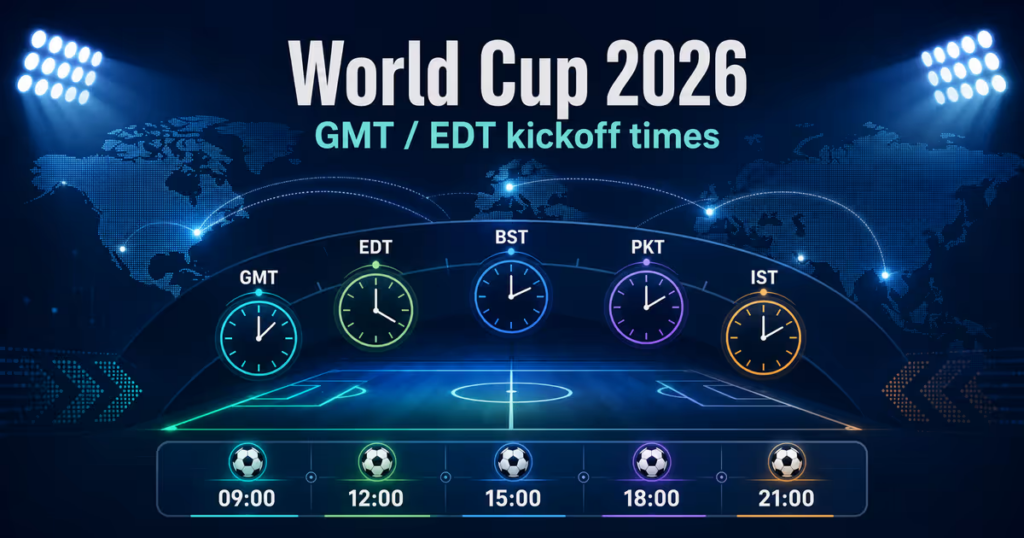
The most common case is that the two pages use different reference points. The official event page may show the venue’s local time, while a sports app converts it to the user’s current zone. These times should represent the same moment, even though the numbers and sometimes the calendar dates are different.
Incorrect device settings can also affect pages that perform automatic conversion. A laptop configured for London while its user is in Seoul may display a match according to UK time. Automatic location detection is not a substitute for checking the device’s date, time, and region settings.
Daylight saving time creates another source of confusion. It does not usually change the actual moment when an event takes place. Instead, it changes the offset between the event location and the viewer’s location. The problem becomes most noticeable when two countries change their clocks on different dates.
Conflicting schedules may also indicate that one page has old information. Sports fixtures are often announced before every broadcast and operational detail has been finalized. The Premier League, for example, explains that fixtures may be moved for live television and other competition requirements, changing the date, kickoff time, or both.
This means a third-party sports app may still show the original Saturday fixture while the league and broadcaster have already moved it to Sunday. No amount of time-zone conversion will make those two listings match because they refer to different versions of the schedule.
The listed times may also describe different stages of the same event. A motorsport page might show the start of the race, while a broadcaster lists the beginning of its coverage. A combat-sports service may advertise the start of the full card, while a news article focuses on the expected main event. Checking the label around the time is just as important as checking the number itself.
A Reliable Way to Verify the Correct Local Start Time
When two sources disagree, begin with the latest official event or league page. Use it to confirm the scheduled date and official start time, but do not assume that the displayed time has already been converted to your location.
Look for a time-zone label or a note explaining how the page handles local time. If the site uses your device settings, confirm that the device is set to the correct region and that automatic time-zone adjustment is enabled.
Next, check whether the league, team, or event organizer has published a schedule amendment. Recent announcements are more useful than an older fixture list, even when the older page appears high in search results.
Once the official start time and its zone are clear, convert it using a location-based time zone rather than a fixed difference. For example, use America/New_York instead of assuming New York is always UTC−5. New York switches between standard time and daylight time, so its UTC offset depends on the event date.
Finally, check the regional broadcaster separately. The official league source tells you when the event starts. The broadcaster tells you when its coverage becomes available and which channel or streaming service carries it in your market. These may be different times without either listing being wrong.
A useful verification sequence is:
- Confirm the latest event date on the official league or organizer page.
- Identify the time zone used by that page.
- Check your device’s current time-zone setting.
- Convert the official start time for the event date.
- Compare it with the regional broadcaster’s coverage time.
Daylight Saving Time Is Most Confusing During the Transition Weeks
Daylight saving time (DST) is one of the main reasons international sports schedules appear to shift by an hour. The event itself usually does not change. Instead, the time difference between the event location and your country changes because they begin or end DST on different dates.
For example, New York and London are normally five hours apart when both are observing daylight saving time. During the short period after the UK returns to GMT but before New York leaves daylight saving time, the difference becomes four hours. As a result, a game scheduled for 8:00 PM in New York appears at 1:00 AM in London for most of the season, but 12:00 AM during that transition period. How to Accurately Calculate Local Time, Korean Time, and Daylight Saving Time for Overseas Matches provides a practical framework for checking these time differences before an overseas match begins.
Another common source of confusion is time-zone abbreviations. ET can refer to either EST or EDT, while CET changes to CEST during daylight saving time. Treating these abbreviations as fixed UTC offsets can easily result in a one-hour error. Countries such as South Korea and Japan do not observe DST, but viewers there can still see match times shift when leagues in North America or Europe change their clocks.

Save the Event Without Freezing the Wrong Offset
The simplest option is usually an official “Add to Calendar” or schedule-sync function. A properly configured calendar feed stores an event as a specific moment and allows the calendar application to display it in the user’s local time.
When entering the event manually, assign the event’s location-based time zone. If the official listing says 8:00 PM in New York, select America/New_York rather than entering 8:00 PM in your own local zone or attaching a permanent UTC−5 offset.
Google Calendar allows users to create events in a different time zone and to display a secondary zone. Google also explains that created events are converted to UTC and then displayed according to the relevant local time, which helps manage daylight-saving changes.
Calendar conversion does not protect against an event being genuinely rescheduled. If a league moves a fixture after you save it, a manually created reminder will not update by itself. An official subscription calendar may update, but its accuracy still depends on the organizer maintaining the feed.
FAQ
Why is the match one hour earlier or later than last week?
One country may have entered or left daylight saving time while the other has not. The event may also have been moved, so verify the latest official fixture before assuming DST is the cause.
Is the time shown on a sports website already converted to my location?
It depends on the website. Some pages use device settings, some show venue time, and others use a fixed reference zone. Look for a time-zone label or a note about automatic local-time conversion.
Does ET mean EST or EDT?
ET is a general term for Eastern Time. The actual offset depends on the date and whether daylight saving time is active at the relevant location.
Why does the TV guide show an earlier time than the official schedule?
The TV guide may be showing the beginning of broadcast coverage, including analysis or interviews, rather than the event’s official start.